Creating a personal budget tracker in Excel
Why create a personal budget tracker?
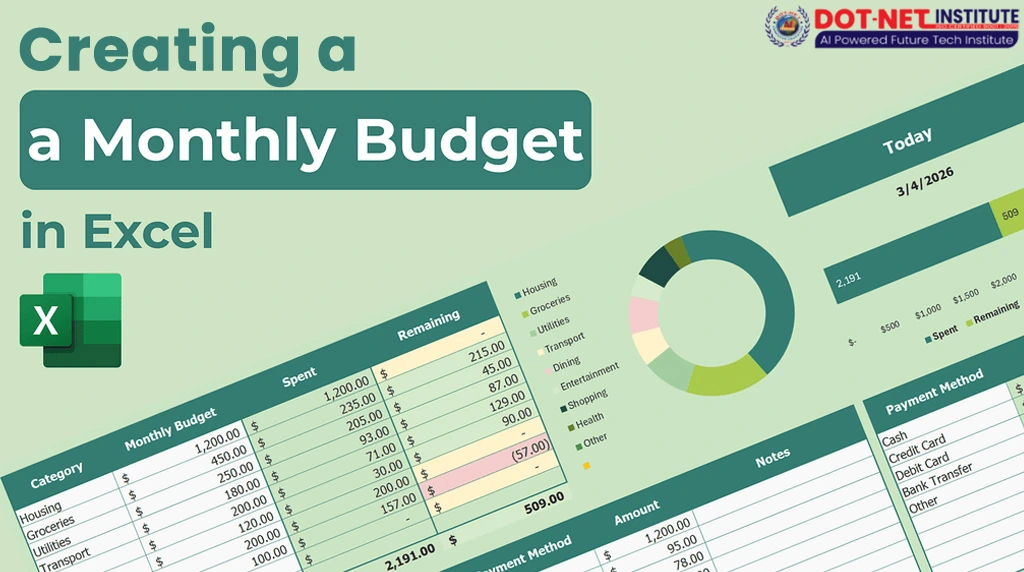
Managing your finances is much easier when you have a clear picture of your income, expenses, and savings. A personal budget tracker helps you see where your money goes and where you can cut back. Excel is a great tool for this because it offers flexibility and powerful features without needing expensive software.
Set up your Excel file
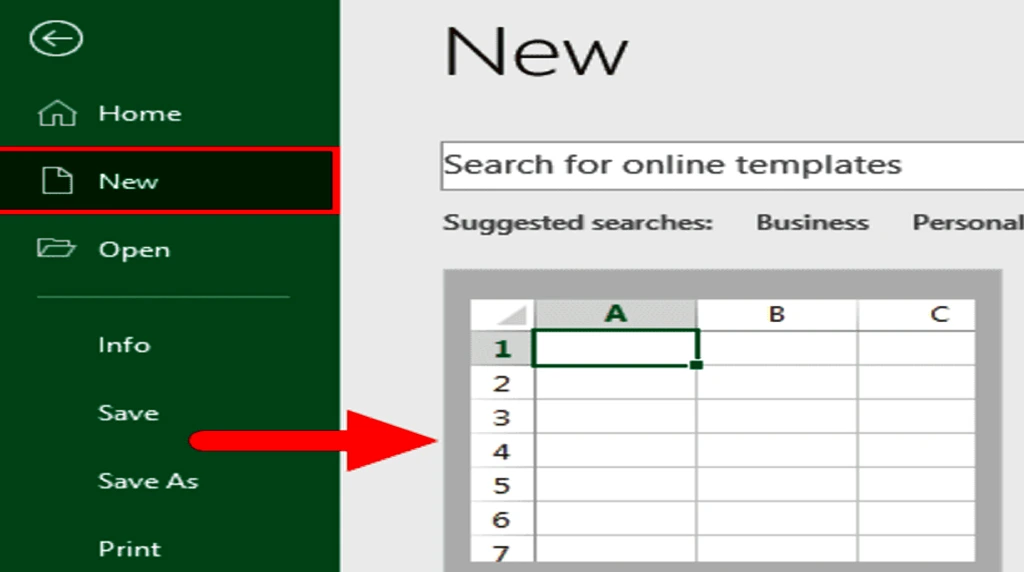
Start by opening a new workbook in Excel. It’s helpful to use one sheet for each month or one large sheet for the entire year, depending on your preference. For beginners, tracking one month per sheet keeps things simple and organized.
Define your budget categories
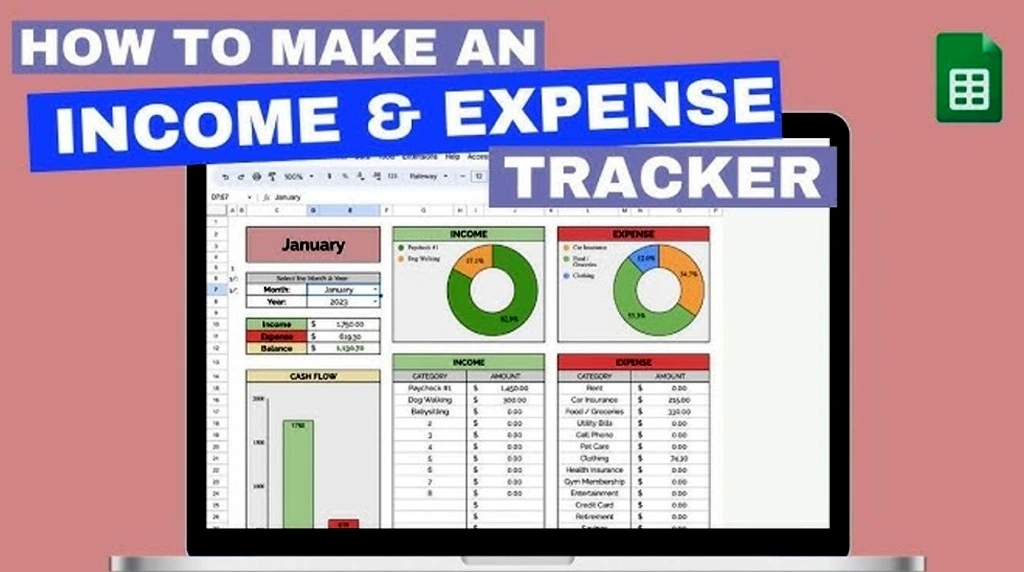
Create headers in the top row of your sheet. For example:
- Date
- Description
- Category
- Amount
- Type (Income/Expense)
Under Category, think of the main areas where your money goes. Common categories include Rent, Utilities, Groceries, Transportation, Entertainment, Savings, and Miscellaneous.

Enter sample data
Date | Description | Category | Amount | Type |
01/07/2025 | Salary | Salary | 3000 | Income |
02/07/2025 | Rent | Rent | 1200 | Expense |
03/07/2025 | Grocery store | Groceries | 150 | Expense |
You can add more rows as you track more transactions.
Use formulas to track totals
One of Excel’s strengths is its formulas. To calculate your total income, use:
=SUMIF(E:E, “Income”, D:D)
This adds up amounts where the Type column is “Income.” Similarly, for expenses:
=SUMIF(E:E, “Expense”, D:D)
You can place these totals at the top or bottom of your sheet so they’re easy to see. You might also want to calculate your net balance:
= [Total Income] – [Total Expenses]
where [Total Income] and [Total Expenses] refer to the cells with those totals.
Add conditional formatting
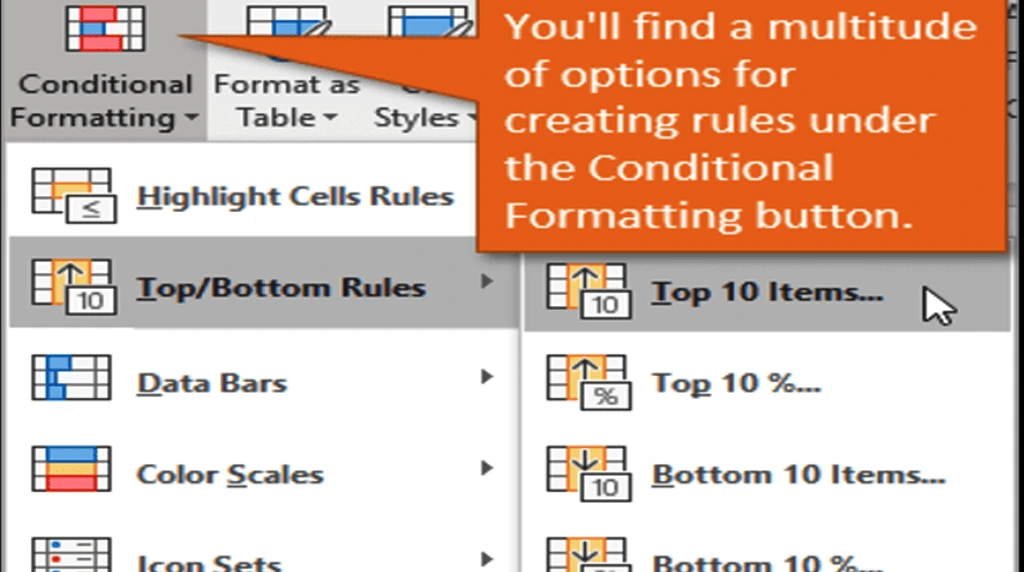
To make your tracker easier to read, use conditional formatting. Highlight expenses that exceed a certain amount (e.g., $500) or use colour scales to see where most of your spending happens.
Create a summary

On a separate sheet or at the bottom of your main sheet, create a summary table. List your categories in rows and show how much you’ve spent in each. You can use:
=SUMIF(C:C, “Rent”, D:D)
This formula sums all the amounts in the Rent category. Repeat for Groceries, Utilities, and so on. This helps you quickly spot where your money is going.
Make charts for a visual overview

Track your progress over time

If you’re using one sheet per month, you can create a yearly summary sheet. Link each monthly sheet to the yearly summary. This helps you see trends, like whether your grocery spending is going up or your savings rate is improving. Simple formulas like =January!F2 + February!F2 can add values from different sheets.
Conclusion
A personal budget tracker in Excel doesn’t need to be fancy. Start simple, and you can add features like dropdown lists, pivot tables, or automation later as you get comfortable. The goal is to stay aware of your money and make decisions that support your financial goals.
Q1: What are the essential components of an effective personal budget tracker in Excel?
An effective tracker typically includes categories for income, fixed expenses (like rent, loan payments), variable expenses (like groceries, entertainment), and savings goals. You’ll also want columns for dates, descriptions, and actual vs. budgeted amounts.
Q2: How can I set up my Excel budget to automatically calculate totals and differences?
You can use Excel formulas! For totals, SUM() is your best friend. To compare budgeted vs. actual spending, use simple subtraction (e.g., =B2-C2). Pivot tables can also be super helpful for summarizing data from different categories.
Is it possible to visualize my spending habits with charts in Excel?
Absolutely! Excel is great for data visualization. You can create pie charts to see how your money is divided among categories, bar charts to compare monthly spending, or line graphs to track trends over time.
Q4: How often should I update my personal budget tracker?
For the most accurate tracking, aim to update it daily or every few days as you incur expenses. Monthly reconciliation of your accounts against your budget is also crucial to ensure everything lines up.
Q5: What are some common mistakes to avoid when creating an Excel budget tracker?
Key mistakes include making your budget too restrictive (leading to burnout), not categorizing expenses clearly, forgetting to include occasional expenses, and not regularly reviewing and adjusting your budget as your financial situation changes.