File system structure in modern operating systems
Introduction to File Systems
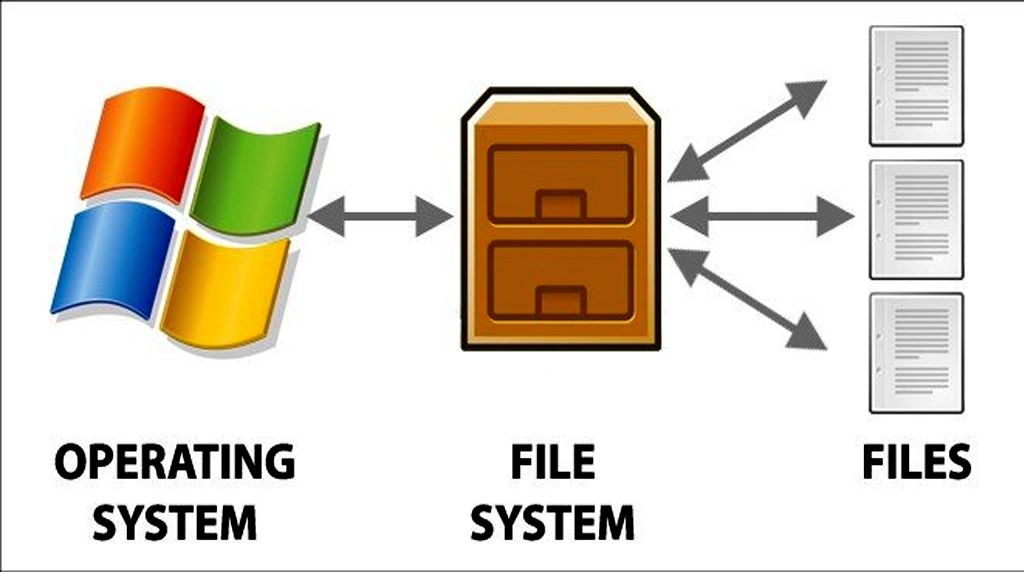
A file system is a critical component of any modern operating system (OS). It provides a method for storing, organizing, retrieving, and managing data on storage devices like hard drives, solid-state drives (SSD), and removable media. Without a file system, data would exist as a large, unstructured block of bits, making access and management nearly impossible for users and applications.
Purpose of File Systems

The main purpose of a file system is to define how data is named, stored, and accessed. It ensures that data is stored efficiently and securely, and that files can be retrieved quickly when needed. A well-designed file system prevents data corruption, enables multi-user access, and provides mechanisms for access control and permissions.
Basic Structure of File Systems
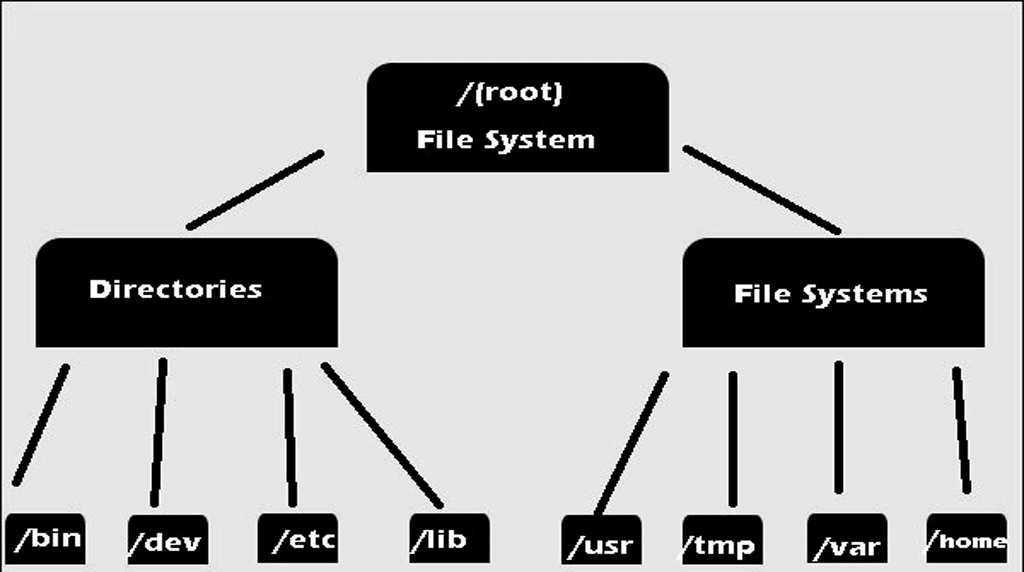
At a fundamental level, a file system organizes data into files and directories (or folders). Each file holds a stream of data, while directories help group files in a logical manner. This hierarchical structure allows users to navigate the system easily. Paths (such as /home/user/documents in Linux or C:\Users\Documents in Windows) describe the location of a file or directory within this hierarchy.
Partitions and Volumes
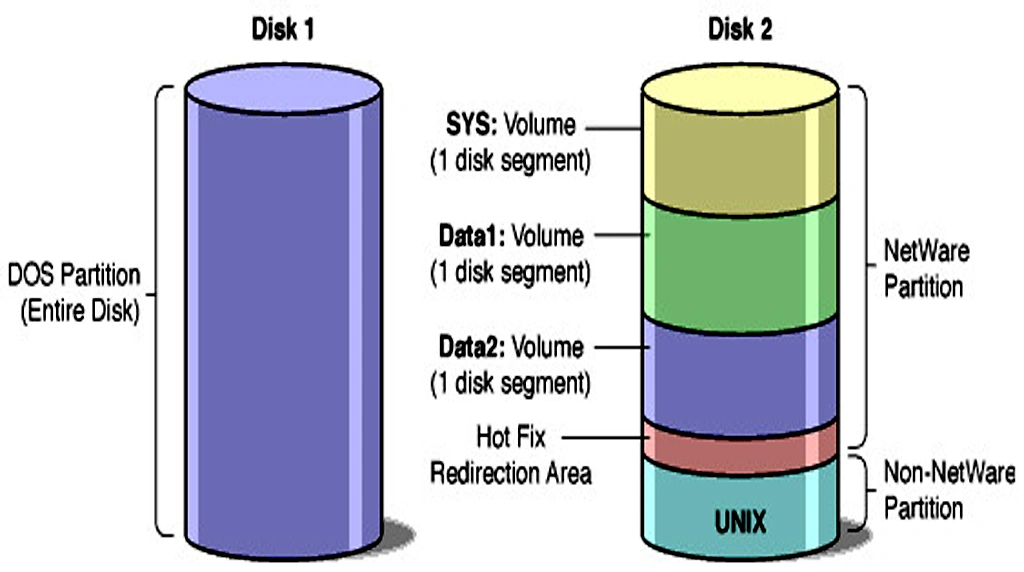
Modern operating systems often divide storage devices into partitions. For example, a single hard drive could have one partition with an NTFS file system for Windows and another with ext4 for Linux. A volume is similar to a partition but can span multiple disks in certain configurations.
Inodes and File Descriptors
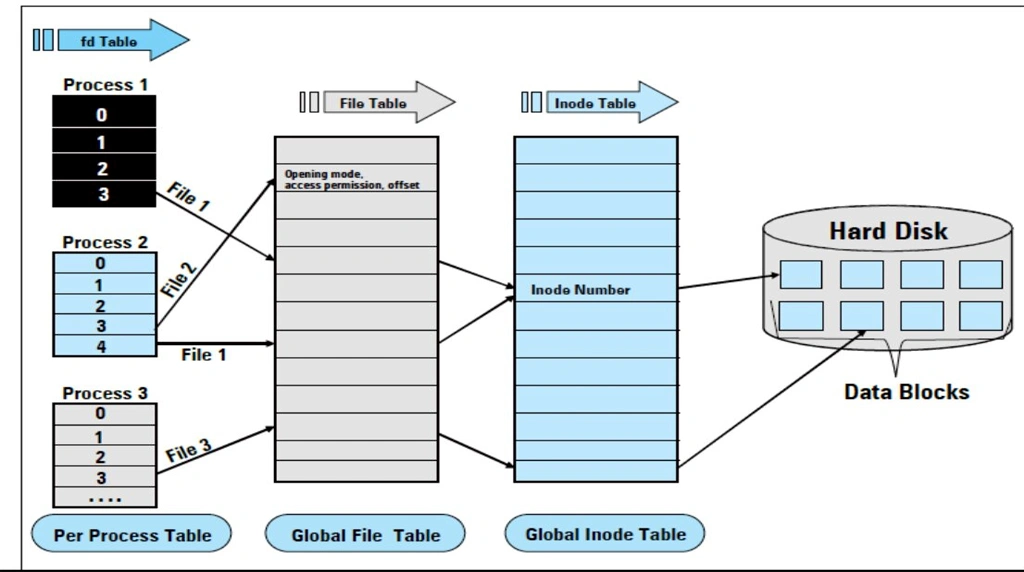
In UNIX-like systems (such as Linux and macOS), files are represented by inodes. An inode is a data structure that stores metadata about a file—such as its size, permissions, timestamps, and pointers to data blocks on the disk. The file name itself is stored separately in a directory entry, which maps the name to the corresponding inode. In contrast, Windows uses file descriptors and the Master File Table (MFT) in NTFS to manage metadata.
Data Blocks
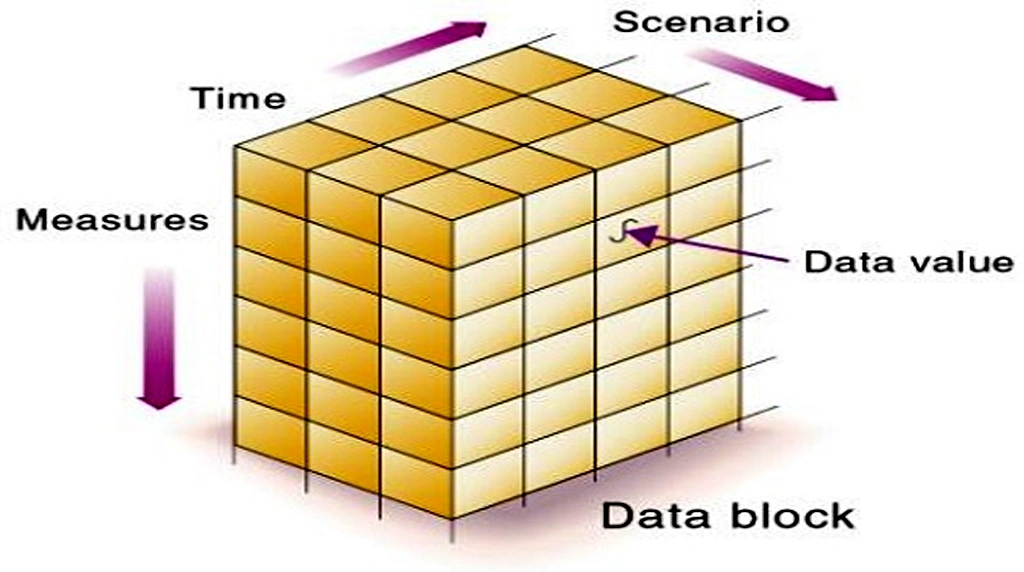
The actual content of files is stored in data blocks on the disk. Efficient management of these blocks is essential to avoid fragmentation, ensure fast access, and maximize disk space utilization.
Journaling and Reliability

Many modern file systems, such as NTFS, ext4, and APFS, use journaling. A journal keeps track of changes that will be made to the file system before they are actually written. This ensures that if a crash or power failure occurs, the system can recover and prevent corruption. Journaling improves the reliability and integrity of the file system.
File System Permissions
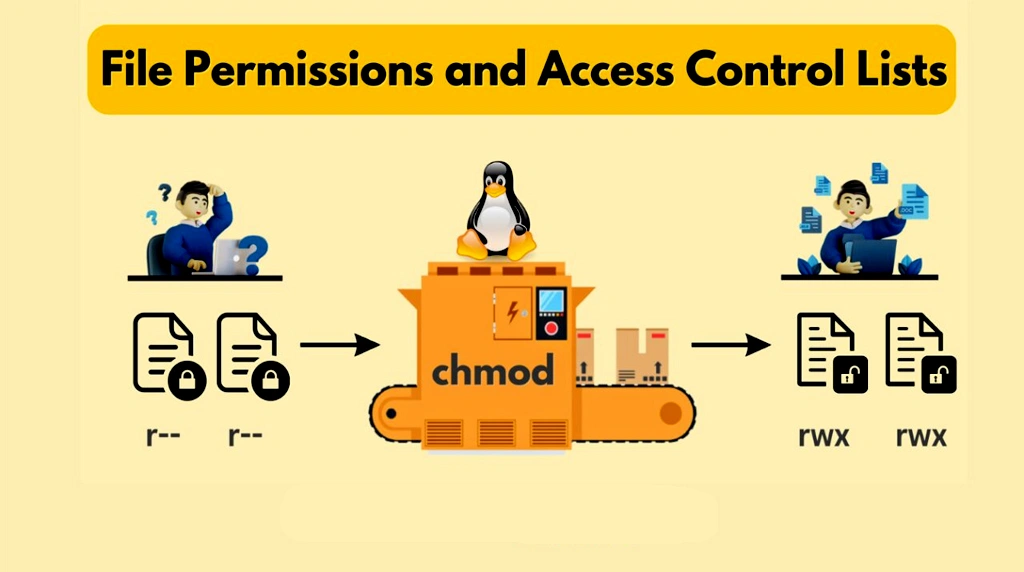
Modern operating systems use file system permissions to control access to files and directories. UNIX-like systems follow a permission model that defines read, write, and execute rights for the owner, group, and others. Windows file systems support Access Control Lists (ACLs) that provide more granular control over who can access files and in what way.
File System Types
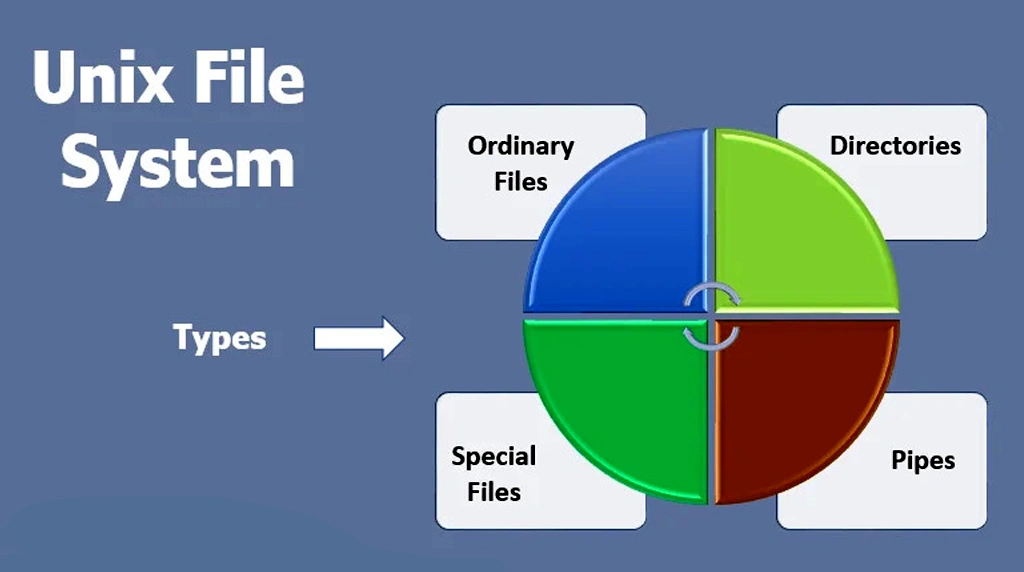
Different file systems are designed with various goals in mind. Linux systems commonly use ext4, XFS, or Btrfs, each with strengths in performance, scalability, or advanced features like snapshots. macOS uses APFS (Apple File System), designed for SSDs and featuring strong encryption and snapshot support.
Mounting File Systems
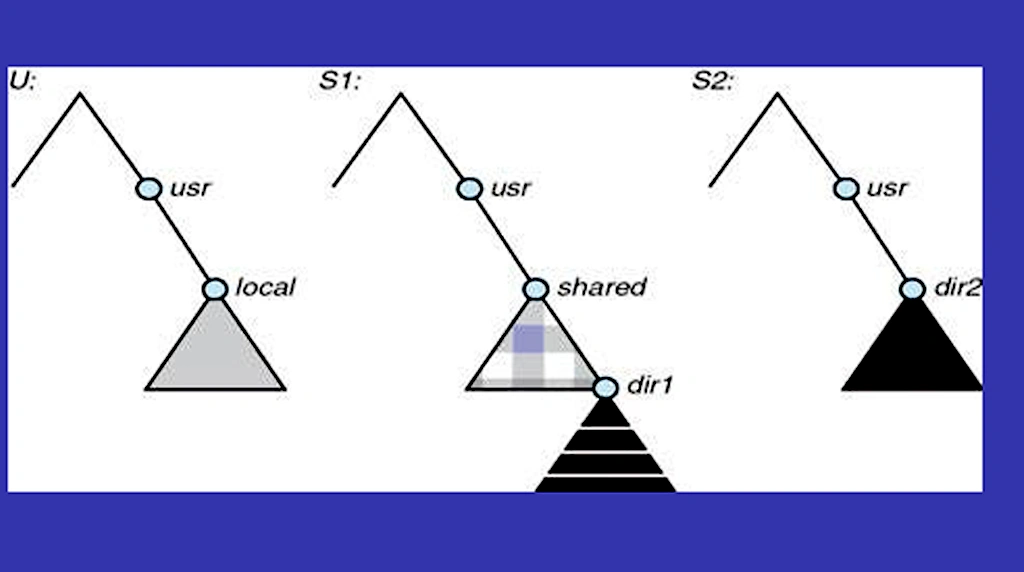
In UNIX-like systems, storage devices and their file systems must be mounted into the global directory tree before they can be accessed. This means that a device is associated with a directory (mount point) such as /mnt/usb. Windows, on the other hand, typically assigns drive letters (like C:, D:) to volumes automatically, making them accessible in the file explorer.
Virtual File Systems
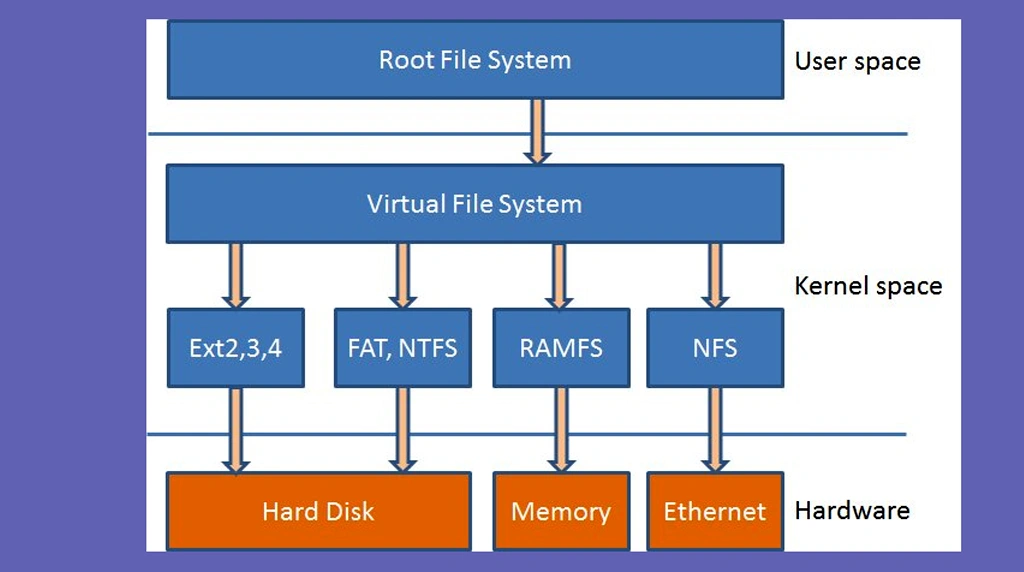
It allows the OS to work with multiple file systems seamlessly, making it possible for users and applications to access files in the same way regardless of the underlying file system type.
File System Utilities
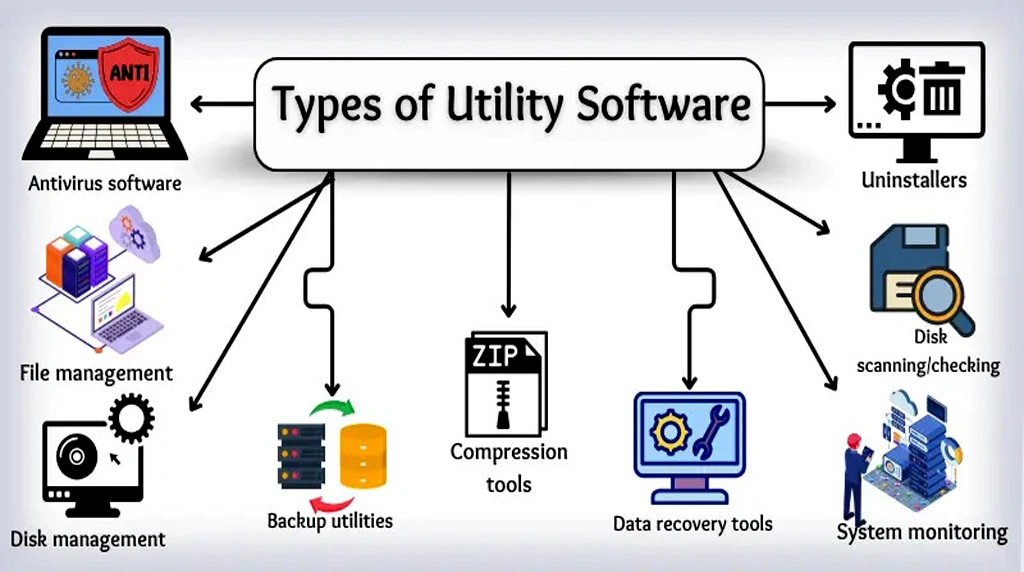
Conclusion
In summary, the file system structure of modern operating systems is a sophisticated, layered framework that manages data storage and retrieval efficiently. By using directories, inodes, data blocks, journaling, and permissions, file systems ensure the integrity, security, and accessibility of data. As storage technologies evolve, file systems continue to advance, adapting to new requirements like large-capacity disks, high-speed SSDs, and cloud storage integration.
Q1. What is a file system and why do I need it?
A file system is the method your operating system uses to control how data is stored, named, and retrieved on a disk. Without it, your computer would see the drive as one giant blob of raw data with no way to tell where a photo ends and a document begins. The file system creates a directory tree, tracks free space, and keeps metadata like file size, permissions, and last modified date. So when you click a file, the OS knows exactly which blocks on the disk to read.
Q2. How does the structure actually look on my computer?
Modern systems organize everything in a hierarchy. Linux and macOS start at a single root called /. From there you branch into folders like /home for user files, /usr for apps, and /etc for settings. Windows starts each drive with a letter like C:\, then uses folders such as Users, Program Files, and Windows. No matter the OS, every file has a unique path. That path is just directions from the root to the file, like C:\Users\Asha\Documents\resume.pdf.
Q3. What are NTFS, APFS, and ext4, and do they matter to me?
These are common file system formats. Windows typically uses NTFS, macOS uses APFS, and many Linux distributions use ext4. They all store your files, but differ under the hood. NTFS supports large files and detailed permissions. APFS is optimized for SSDs with features like snapshots and space sharing. Ext4 is stable and handles huge volumes well. For day to day use you won’t notice much, but the format affects speed, reliability, and features like encryption or file recovery.
Q4. Why are some files and folders hidden or locked?
Operating systems hide system files to protect you. Folders like C:\Windows\System32, /bin, or /System contain code the OS needs to boot and run. Deleting or changing them can break things. They’re also flagged with special permissions so only admin or root accounts can modify them. You can usually view hidden files by changing a setting, but it’s best to leave them alone unless you know exactly what you’re doing.
Q5. Do SSDs and HDDs use different structures?
The logical file system tree is the same on both. Your folders don’t change because you swapped drives. What changes is how the file system talks to the hardware. Modern file systems like APFS and newer versions of NTFS know about SSDs and use features like TRIM to manage flash memory efficiently. On HDDs, the same file system will try to keep related data close together to reduce head movement. So the structure you see stays consistent, while the file system optimizes behind the scenes for the drive type.