Cyber security basics for everyday internet users.
Introduction
In today’s hyper-connected world, the internet is an essential part of our lives. We shop online, handle finances, use social media, store private information in the cloud, and access services with just a few clicks. But with this convenience comes significant risk. Cybercriminals are constantly evolving their tactics, and everyday internet users are increasingly targeted. Understanding basic cyber security practices is no longer optional — it’s essential.
The Importance of Strong Passwords
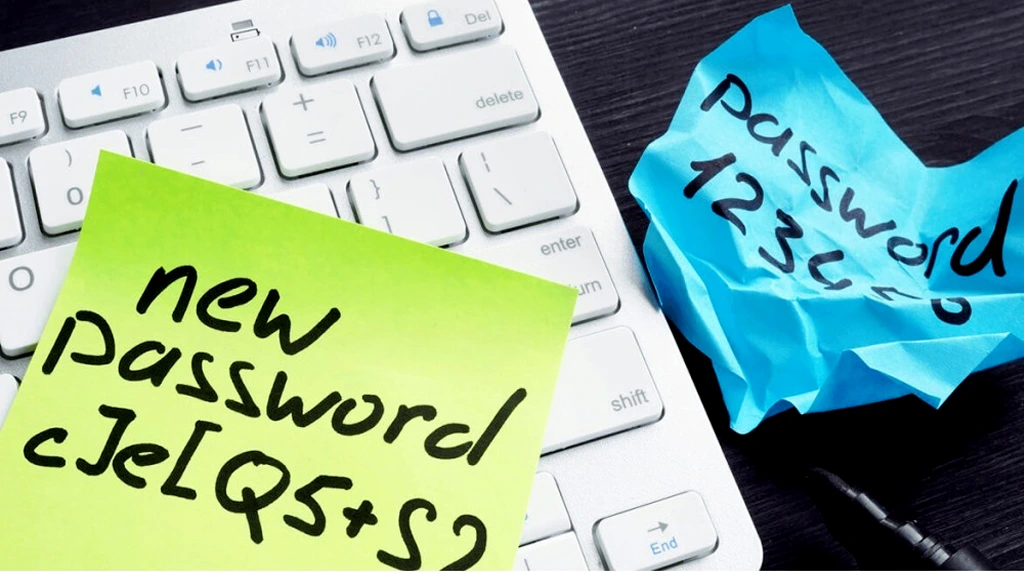
One of the most common vulnerabilities in personal cybersecurity is weak or reused passwords. Many users still rely on easy-to-guess combinations such as “123456” or “password,” leaving their accounts wide open to attackers. Using a password manager like LastPass, Bitwarden, or 1Password can make it easier to generate and securely store complex passwords, reducing the temptation to reuse the same credentials across multiple platforms.
Two-Factor Authentication: A Simple but Powerful Layer
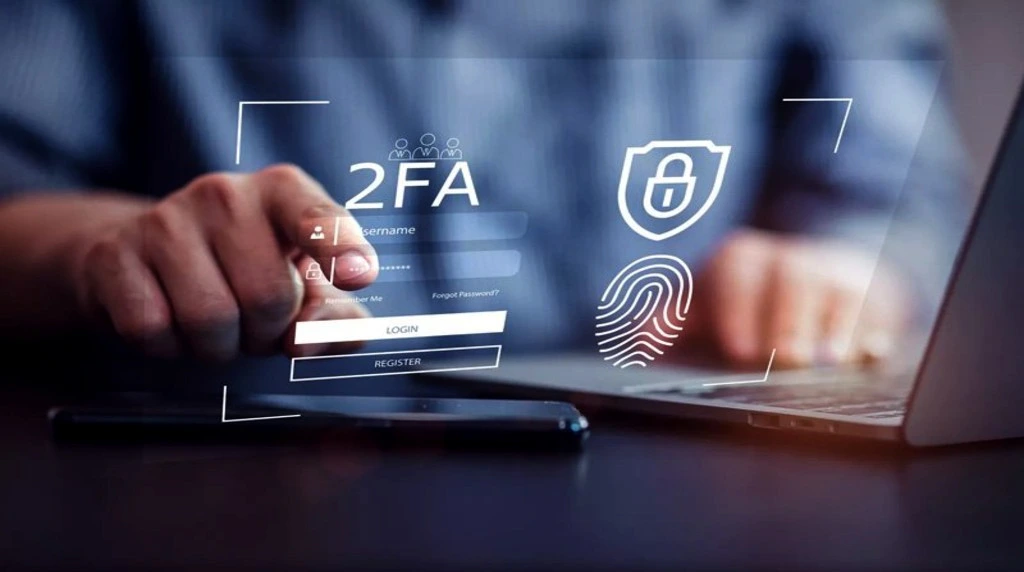
Two-factor authentication (2FA) adds a second step to the login process, typically involving something you know (your password) and something you have (a code sent to your phone or generated by an app). Even if someone gains access to your password, they can’t log in without that second factor. Enabling 2FA on email, banking, and social media accounts significantly increases your security with minimal effort.
Safe Browsing Habits
Not all websites are created equal. Before entering any personal information online, ensure the website uses HTTPS — the secure version of HTTP, indicated by a padlock icon in the browser’s address bar. Avoid clicking on links or downloading attachments from unknown emails or websites. Phishing attacks — fraudulent attempts to obtain sensitive information — often look like legitimate messages from trusted sources. Always double-check the sender’s email address and verify any request for login details or financial information through a separate trusted channel.
The Risks of Public Wi-Fi
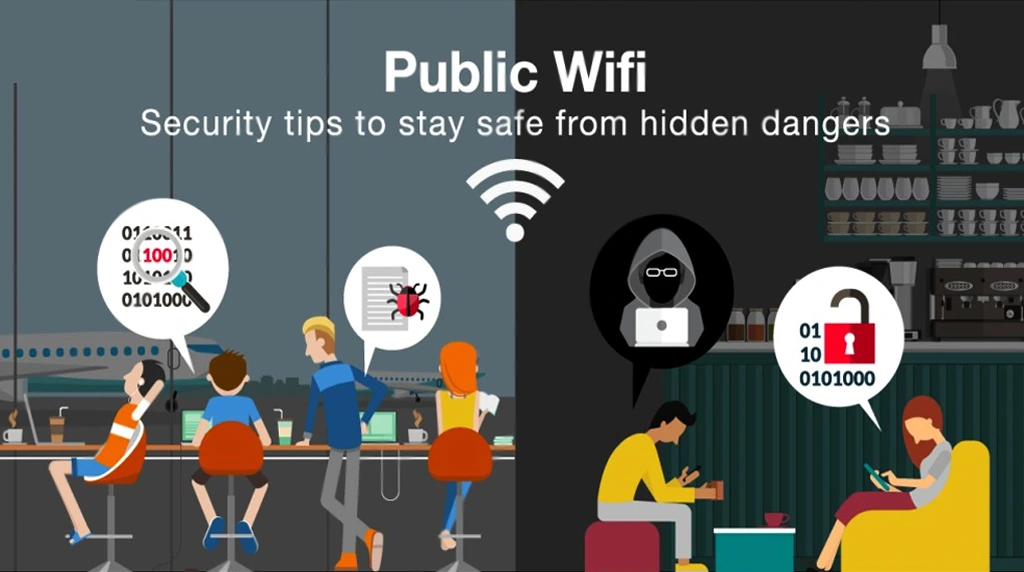
Public Wi-Fi in coffee shops, airports, or malls may seem convenient, but it often lacks proper security. Hackers can easily intercept data shared over unsecured networks, potentially gaining access to your emails, passwords, or even bank account details. If you must use public Wi-Fi, avoid logging into sensitive accounts, and consider using a virtual private network (VPN) to encrypt your internet connection.
Regular Software Updates Are Crucial

Keeping your operating system, browser, antivirus software, and applications up to date ensures you benefit from the latest security patches. Most systems allow you to enable automatic updates — take advantage of this feature. Ignoring those update notifications might save a few minutes today but could cost much more in the event of a breach.
Use Antivirus and Anti-Malware Protection
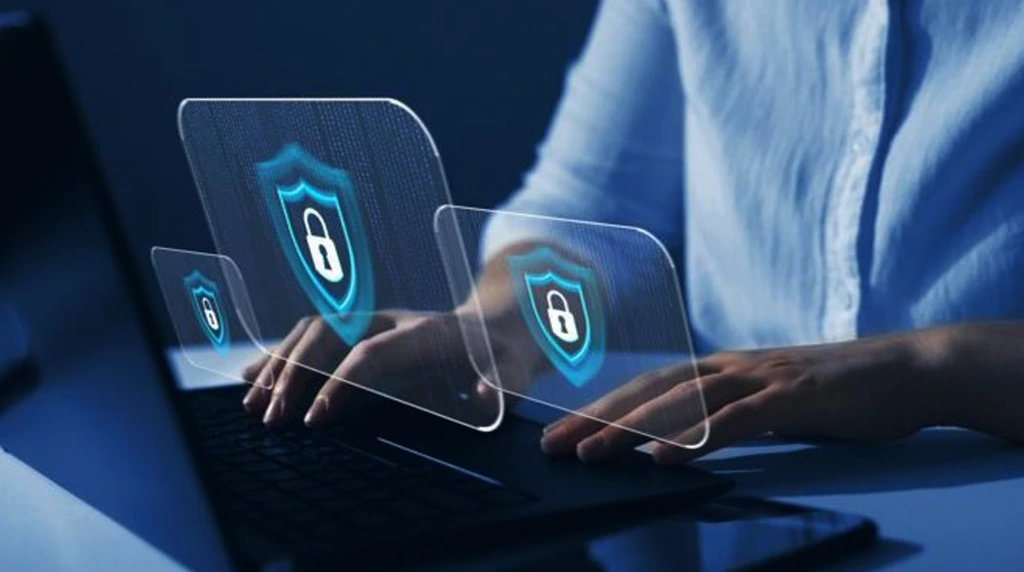
A reputable antivirus or anti-malware program acts as a shield against malicious software. Many modern antivirus programs also offer features such as firewall protection, email scanning, and phishing detection. Windows Defender, which comes pre-installed on Windows PCs, is a solid option, but premium services like Norton, McAfee, or Kaspersky offer more comprehensive protection.
Data Backups Protect Against Loss

Even with robust security practices, accidents and attacks can still happen. Ran somware, for example, can lock you out of your data unless you pay a ransom. Store copies of important files on an external hard drive or in a secure cloud storage service. Automate your backup process to ensure consistency and minimize risk. In case of a device failure or breach, backups allow you to recover without significant data loss.
Limit Sharing of Personal Information
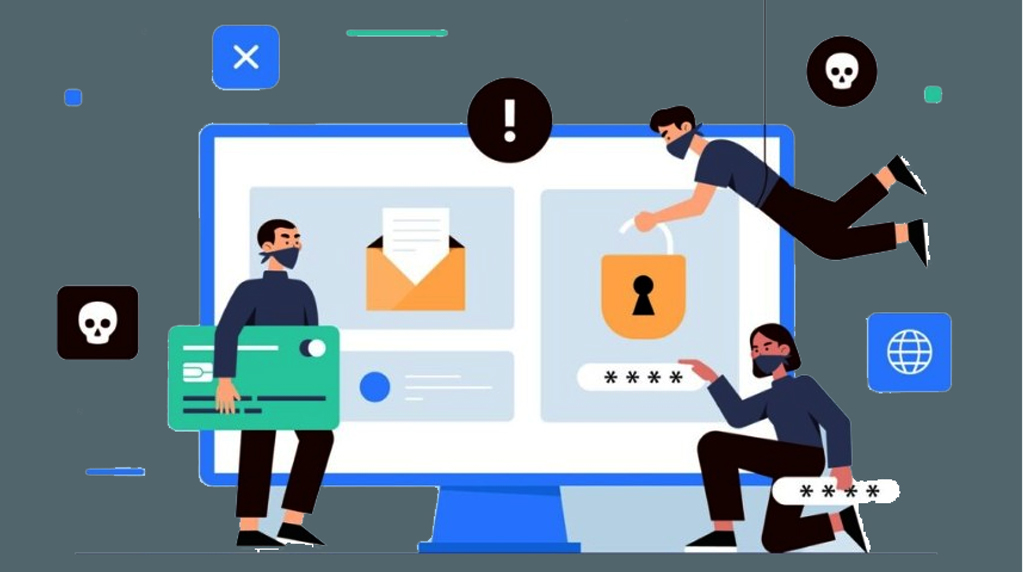
Cybercriminals often gather personal information from public profiles to guess passwords, impersonate users, or launch social engineering attacks. Avoid posting your birthdate, home address, or travel plans online. Review the privacy settings of your social accounts and limit who can see your posts, photos, and personal details. The less you share, the lower your risk of being targeted.
Cyber Awareness Is an Ongoing Practice
Cyber security is not a one-time fix — it’s an ongoing mindset. As threats evolve, so must your habits. Stay informed about common scams, new malware types, and the latest best practices by following trusted sources like the Cyber security & Infrastructure Security Agency (CISA), Norton, or cyber security blogs. Educate your family members, especially children and elderly relatives, who may be more vulnerable to online threats.
Conclusion
Staying safe online doesn’t require advanced technical skills. Simple actions — using strong passwords, enabling two-factor authentication, keeping software updated, and avoiding suspicious links — can greatly reduce your chances of becoming a victim. By understanding the basics of cyber security and applying them consistently, you take control of your digital life and protect what matters most.
FAQs
Q1. Do I really need a different password for every site?
Yes. This is the golden rule of digital hygiene. If you use the same password for a random shopping site and your primary email, a single data breach at that shop gives hackers the “master key” to your entire life.
Q 2. What is Two-Factor Authentication (2FA)?
Think of 2FA as a second lock on your door. Even if a hacker steals your password, they still can’t get in without a second “token”—usually a code sent to your phone or an app.
Q 3. How do I spot a "Phishing" scam?
Phishing is when scammers pretend to be a trusted brand (like Netflix or your bank) to steal your info. Watch for these red flags:
- Artificial Urgency: “Act now or your account will be deleted!”
- Mismatched Links: Hover your mouse over a link to see the actual URL. If it looks like gibberish, don’t click.
- Bad Grammar: Large companies rarely send emails with obvious spelling mistakes.
Q 4. Is public Wi-Fi safe to use?
Generally, no. Public Wi-Fi is “open,” meaning others on the network could potentially “eavesdrop” on your data.
- The Rule: Avoid logging into bank accounts or making purchases on public networks.
- The Workaround: Use a VPN (Virtual Private Network) to encrypt your connection, or just use your phone’s cellular data.
Q 5. How do I know if my device is infected?
While a slow computer can just be old, certain signs point to “malware”:
- Random Pop-ups: Seeing ads even when your browser is closed.
- Redirects: You try to go to Google, but your browser takes you to a strange search engine.
- High Heat: Your device feels hot or the fan runs constantly even when you aren’t doing anything.